The MuvUnder Cover user interface has been designed to give you maximum usability while displaying the most relevant information at all times.
Overview of the Main Window:
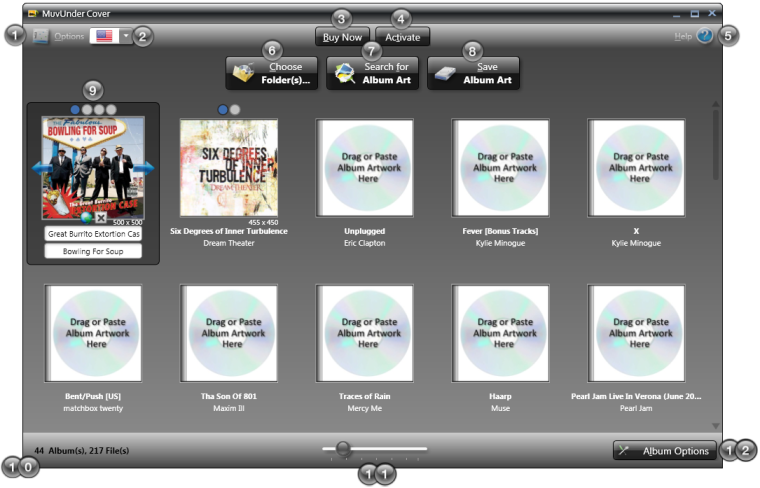
Main Window of MuvUnder Cover |
| Image Key | Shortcut Key | Name | Description |
|---|---|---|---|
 |
Alt+O | Options | Shows the options window. |
 |
Alt+R | Artwork Source | Specifies the international source you want to search for artwork. For example, if the majority of your music is by Japanese artists, set your artwork source to 'Japan'. The choices are Canada, France, Germany, Japan, United Kingdom, and United States (default). |
 |
Alt+B | Buy Now | Opens your default internet browser to the MuvUnder Cover purchase page. |
 |
Alt+T | Activate | Expands the software activation section to allow you to enter the registration name and activation code you received when purchasing the software. |
 |
Alt+H | Help | Shows a menu with the following options: Online Manual, Support, Check For Updates, and About. |
 |
Alt+C | Choose Folder(s)... | Shows the window to choose folders that contain files you want to search for album artwork. |
 |
Alt+F | Search For Album Art | Searches the albums in your album list for album artwork based off of their album title and album artist. |
 |
Alt+S | Save Album Art | Saves the currently visible artwork for each album into the album files. |
 |
N/A | Album Element | Shows the album title, artist, artwork w/ dimensions and the controls for choosing the album artwork. |
 |
N/A | Number of Album and Files | The number of albums and files (songs) currently in the album list. |
 |
Ctrl+Mouse Wheel | Album Zoom | Allows you to increase/decrease the size of the album elements for easy viewing at any resolution. |
 |
Alt+L | Album Options | Shows a menu for interacting with the album list with the following options: Check All To Save, Check None To Save, Clear Album List, and Clear Saved Albums. |
Overview of the Album Element:
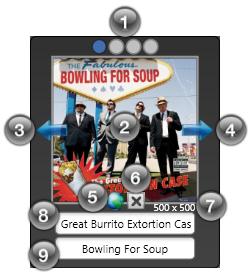
| Image Key | Name | Description | ||
|---|---|---|---|---|
|
Artwork Results | A circle represents one album artwork search result. Clicking on the circle will change album artwork displayed and make it the selected album artwork to be saved. When selecting the dimensions of the newly selected search result will be shown below the bottom right of the artwork. | ||
|
Album Artwork | Shows the currently selected album artwork that is selected to be saved into the album file(s). | ||
|
Previous Artwork | Selects and displays the previous album artwork in the search results. | ||
|
Next Artwork | Selects and displays the next album artwork in the search results. | ||
|
Search Google Images | If no album artwork was found, clicking this button will search Google Images using the Album Title and Artist listed below (8 and 9). | ||
|
Check To Save |
Marks this album artwork to be saved into the album file(s).
|
||
|
Selected Artwork Dimensions | Displays the dimensions of the album artwork currently displayed. | ||
|
Album Title |
The title of the album that will be used to search for album artwork.
|
||
|
Artist |
The artist of the album that will be used to search for album artwork.
|

Overview of the Album Element Right-Click Menu (Affects only the selected album)
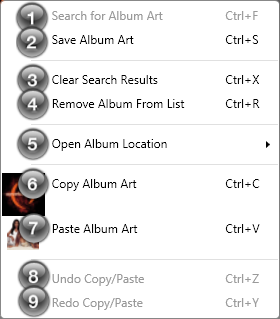
| Image Key | Shortcut Key | Name | Description |
|---|---|---|---|
|
Ctrl+F | Search For Album Art | Searches for album artwork for the selected album if the Album Title or Artist are different from the last time it has been searched or if it is the first time being searched. |
|
Ctrl+S | Save Album Art | Saves the displayed album artwork in the selected album. |
|
Ctrl+X | Clear Search Results | Clears the artwork search results for the selected album. |
|
Ctrl+R |
Remove Album From List | Removes the selected album from the album list. |
|
Ctrl+O |
Open Album Location | Opens Windows Explorer to the folder location(s) of the current album. Shows multiple folders to open if album is spread among multiple folders. |
|
Ctrl+C | Copy Album Art | Copies the currently selected albums displayed artwork into the clipboard. |
|
Ctrl+V | Paste Album Art | Pastes the image in the clipboard into the album artwork results as an album artwork option to be saved. |
|
Ctrl+Z | Undo Copy/Paste | Reverts the last copied or pasted album artwork action. |
|
Ctrl+Y | Redo Copy/Paste | Reverts the last copied or pasted album artwork undo action. |
Overview of the Options - Artwork Window:
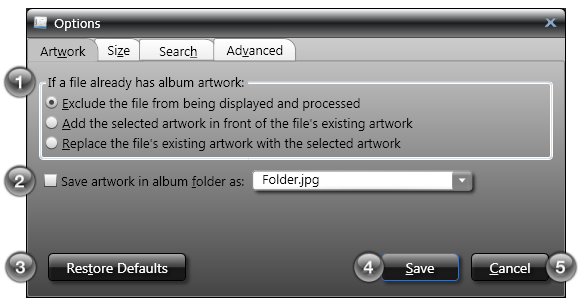
| Image Key | Shortcut Key | Name | Description |
|---|---|---|---|
|
Alt+E (Exclude) Alt+A (Add) Alt+R (Replace) |
If a file already contains artwork... | Determines what MuvUnder Cover should do with albums if the they already contain artwork. |
|
Alt+F | Save artwork in album folder as: | If checked, saves the artwork for an album into the folder(s) where the album files are located using the specified filename. If the file already exists, it will be replaced. |
|
Alt+T | Restore Defaults | Restores the default settings back to their originals when the software was first installed. |
|
Alt+S | Save | Saves any changes you made to the options, closes the options window, and causes them to take effect immediately. |
|
Alt+C | Cancel | Cancels any changes you made to the options and closes the options window. |
Overview of the Options - Size Window:
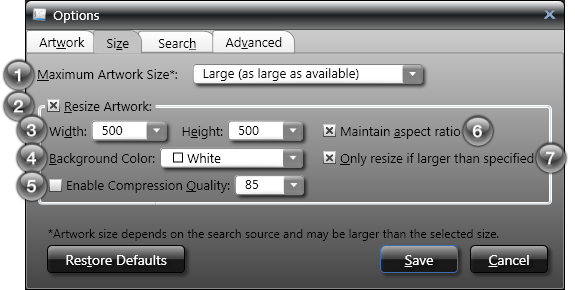
| Image Key | Shortcut Key | Name | Description |
|---|---|---|---|
|
Alt+M | Maximum Artwork Size | Determines the maximum artwork image size to download. If the exact size is not available, the next closest size will be used. *Artwork size depends on the search source and may be larger than the selected size. |
|
Alt+R | Resize Artwork | Resizes the album artwork using the specified options. |
|
Alt+D/Alt+E | Width and Height | Specifies the width and height you want the artwork resized to. If both 'Width' and 'Height' are set to 'Auto', no resizing will be done. |
|
Alt+B | Background Color | Specifies the background color to fill the empty space when 'Maintain aspect ratio' is checked, and both 'Width' and 'Height' are not set to 'Auto'. |
|
Alt+Q | Enable Compression Quality | If checked, album artwork will be compressed to the specified compression quality (only affects the JPEG image format). *Depending on the original image compression quality, using this setting may result in a larger file size than the original image. |
|
Alt+A | Maintain aspect ratio | If checked, causes the width and height to scale based on the original size. If not checked, the artwork may be stretched or squished, causing distortion. |
|
Alt+O | Only resize if larger than specified | If checked, the artwork will only be resized when the artwork is larger than the 'Width' and 'Height' specified above. This is useful when you don't want small images being resized (losing quality) to a much larger size. |
Overview of the Options - Search Window:
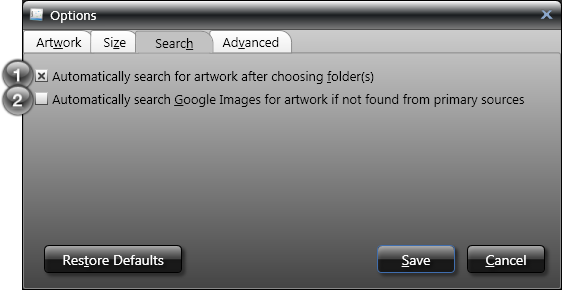
| Image Key | Shortcut Key | Name | Description |
|---|---|---|---|
|
Alt+F | Automatically Search For Artwork | Automatically searches for Album Artwork for files that were added to your Album List after choosing folder(s). |
|
Alt+G | Automatically Search Google Images | The primary sources may not provide artwork for every album. This option will automatically search Google Images to help fill in missing album artwork, but with decreased accuracy. When this option is enabled, please make sure to verify that the album artwork is correct before saving. |
Overview of the Options - Advanced Window:
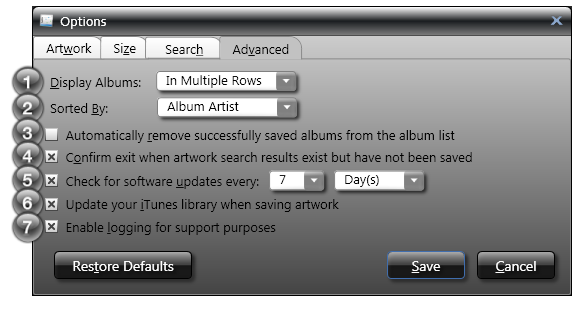
| Image Key | Shortcut Key | Name | Description |
|---|---|---|---|
|
Alt+D | Display Albums | Determines how the albums will be displayed on the main screen. |
|
Alt+B | Sorted By | Determines how the albums will be sorted, by "Album Artist" or by "Album Title", on the main screen. |
|
Alt+R | Automatically remove saved albums | Automatically removes successfully saved albums from the album list. |
|
Alt+O | Confirm Exit | If checked, confirms exit when artwork search results exist but have not been saved. |
|
Alt+U | Check for updates every... | MuvUnder Cover supports the automatic checking for updates. This option allows you to specify how often you would like the software to check for new updates and also allows you to disable this feature. |
|
Alt+I | Update iTunes Library | If iTunes is installed, this will force iTunes to display the newly saved artwork which will be synced to portable devices the next time you sync them. |
|
Alt+L | Enabled logging for support purposes | If you are experiencing issues and have contacted support, they may ask you to enable this option to collect additional data to help resolve the issue. |
Overview of the Choose Folder(s)... Window:
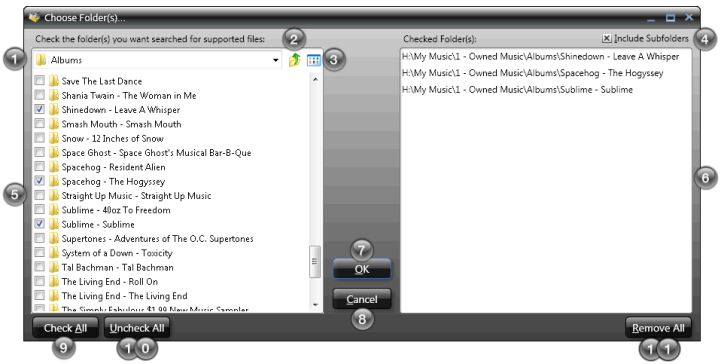 |
| Image Key | Shortcut Key | Name | Description | ||
|---|---|---|---|---|---|
|
N/A | Current Folder Location | Provides a drop-down for navigating to system drives and folders which when selected, will display the folder(s) in the Folder Selection List. | ||
|
N/A |
Go Up One Folder | Navigate up one folder from your Current Folder Location. | ||
|
N/A | View Style |
Changes the Folder Selection List View Style similar to Windows© Explorer. The different views are:
|
||
|
Alt+I | Include Subfolders |
When hitting OK, this option will search all subfolders (directories beneath the checked directory) of the the Checked Folders for supported files.
|
||
|
N/A | Folder Selection List | Shows a list of folders that correspond to the Current Folder Location. Check the boxes to the left of the folder names to add the folder to the Checked Folder List. All checked folders will then be searched for supported files that will be added to the Album List after clicking OK. | ||
|
N/A | Checked Folder(s) List |
Shows the list of folders that you have checked in the Folder Selection List. These are the current folders that will be searched for supported files after clicking OK.
|
||
|
Alt+O | OK | Closes the Choose Folder(s)... window and begins the search for supported files followed by the search for album artwork (if enabled). | ||
|
Alt+C | Cancel | Closes and cancels the Choose Folder(s)... window. | ||
|
Alt+A | Check All | Checks all the folders shown in the Folder Selection List. | ||
|
Alt+U | Uncheck All | Unchecks all the currently checked folders in the Folder Selection List. | ||
|
Alt+R | Remove All | Removes all folders from the Checked Folder List. |

Overview of the Album Options Menu
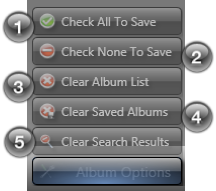
| Image Key | Shortcut Key | Name | Description |
|---|---|---|---|
|
Alt+A | Check All To Save | Checks all albums so that the album artwork will be saved. |
|
Alt+N | Check None To Save | Unchecks all albums so that the album artwork will not be saved. |
|
Alt+I |
Clear Album List | Removes all albums from the album list. |
|
Alt+V | Clear Saved Albums | Removes the saved albums from the list so that you can focus on those albums without album artwork. |
|
Alt+V | Clear Search Results | Removes the search results for all albums in the album list. |
Overview of the Help Menu
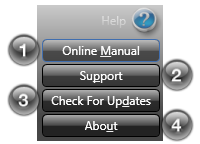
| Image Key | Shortcut Key | Name | Description |
|---|---|---|---|
|
Alt+M | Online Manual | Opens your default internet browser to the online manual (what you are reading right now). |
|
Alt+P | Support | Opens your default internet browser to the MuvEnum Support website. |
|
Alt+D |
Check For Updates | Checks to make sure you are running the latest version of MuvUnder Cover, and if not, allows you to update easily. |
|
Alt+U | About | Shows the about window that contains the program name, the version number, who the software is registered to, along with copyright information and links to the MuvEnum website. |